Purple Clicker
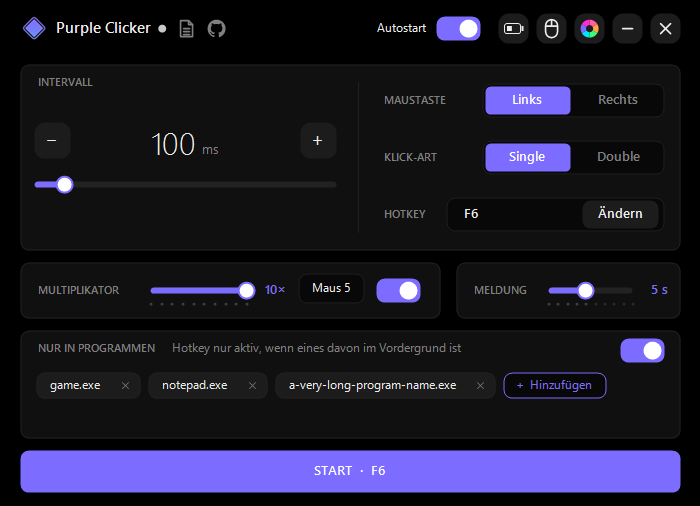
Purple Clicker is a small autoclicker for Windows with a dark AMOLED interface. Over time it picked up a few more things: a click multiplier, mouse button remapping, six themes and, most recently, a battery monitor for wireless headsets, mice and keyboards that works without any vendor software.
Download
Download PurpleClicker.exe (about 240 KB) · Source code on GitHub
The whole program is a single C# file. build.cmd compiles it with the C# compiler that ships with Windows, so you don't need Visual Studio.
- Windows 10 or 11. It uses .NET Framework 4.8, which is already part of Windows.
- Portable: no installer. Settings are stored in
settings.ininext to the exe. - No admin rights needed for anything, including autostart and the Windows notifications.
- The interface is in German.
The exe is not code-signed, so the first time you run a downloaded copy Windows may show "Windows protected your PC". Click More info → Run anyway.
Features
Autoclicker
- Interval in milliseconds (slider, +/- buttons, or type a value; the mouse wheel over the card changes it too)
- Left or right mouse button, single or double click
- A global hotkey toggles clicking in any program. It can be a keyboard key or mouse button 1–5, and the key press is swallowed so the game does not see it.
Multiplier
One real click becomes up to ten clicks. The multiplier has its own on/off hotkey, and a small overlay shows the new state when you toggle it.
Only in selected programs
Pick programs from a list of running windows. The hotkey then only works while one of them is in the foreground, and a short overlay in the top-right corner tells you when Purple Clicker becomes active.
Autostart and tray
Optionally starts with Windows straight into the tray. Closing the window only hides it; quit via the tray menu.
Themes
Original, Terminal, Neon, Mono, Sunset and Rainbow (with slowly shifting colors), selectable from the color wheel in the title bar.
Mouse remapping
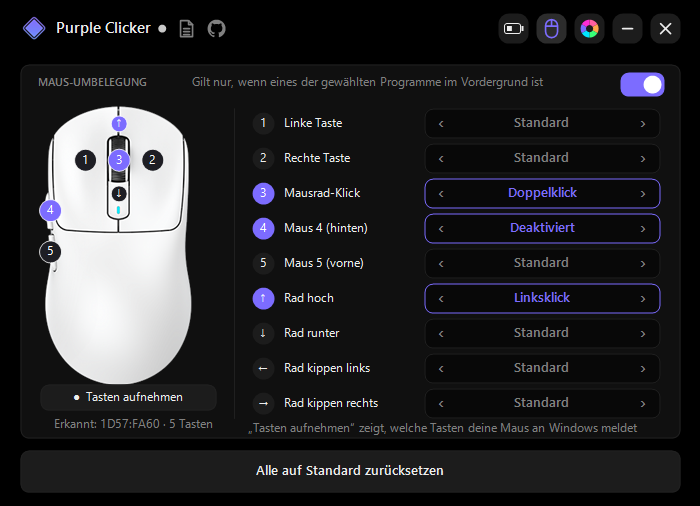
Every mouse button, the wheel and wheel tilt can be mapped to another action: left/right/middle click, mouse 4/5, wheel up/down, double click, or disabled. The record mode shows which buttons your mouse actually reports to Windows. Buttons such as DPI switches are handled inside the mouse and cannot be remapped.
Battery monitor
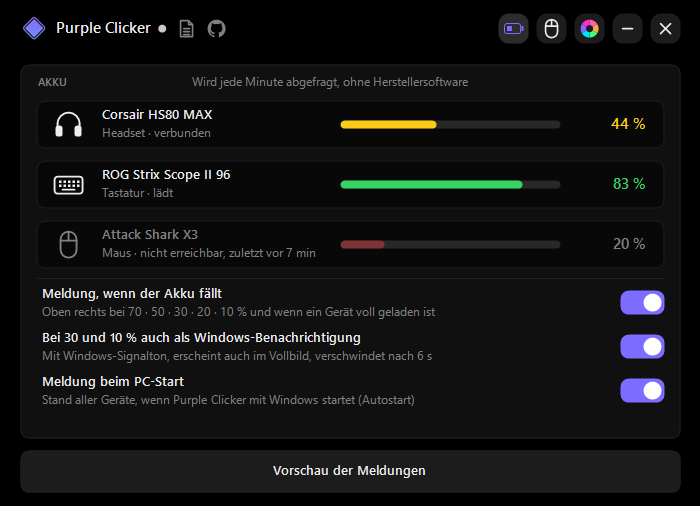
The battery page shows the charge of your wireless devices. It refreshes every minute and immediately when a device is plugged in or the PC wakes up.
- Overlay in the top-right corner when a device drops to 70, 50, 30, 20 or 10 %, and when it is fully charged. The border is green above 70 %, yellow from 30–70 % and red below 30 %. Several devices stack below each other, under the spot used by the click overlay.
- Windows notification at 30 % and 10 %, with the normal Windows notification sound. It also appears on top of fullscreen games and disappears after 6 seconds.
- Summary at startup: when Purple Clicker starts with Windows, it shows the current charge of every device once.
- Charging does not spam you: going from 10 % to 80 % produces no messages at 20, 30, 50 or 70 %. A level only arms again after the device clearly rises above it.
Each of these can be switched off on the battery page.

Supported devices
| Device | Connection | Resolution |
|---|---|---|
| Corsair HS80 MAX Wireless | USB receiver | 1 % |
| ASUS ROG Strix Scope II 96 Wireless | ROG Omni Receiver | 1 % |
| Attack Shark X3 | 2.4 GHz receiver | 10 % steps |
Other devices are listed as "not connected". They don't report their battery in a standard way, see below.
Under the hood
None of these devices report their battery through the standard HID battery usage, which is why Windows itself shows nothing. Each vendor has its own protocol on top of normal HID, which Windows already supports without extra drivers. Purple Clicker talks to the devices directly and only ever sends read requests:
- Corsair HS80 MAX: Corsair's "Bragi" protocol. Reading property
0x0Freturns the charge in per mille. - ROG Strix Scope II 96: the request
12 01on the Omni receiver's vendor interface returns the percentage and a charging flag. - Attack Shark X3: the receiver sends a small status report on its own every two seconds (
03 10 40 xx level). To find out what the level byte means, the vendor tool was disassembled: it showslevel × 10percent, accepting only levels 1–10.
All reads use overlapped I/O with a timeout, so a sleeping or unplugged device can never freeze the program.
For the notifications, Windows offers several toast types. During "Do not disturb", which Windows turns on automatically for fullscreen games, "important" notifications are shortened to just "New important notification". Reminder and call notifications did not show up at all in testing. Only the alarm type shows its full text over a game. Purple Clicker therefore sends an alarm-type toast, replaces the alarm ringtone with the normal notification sound, and removes it again after a few seconds.
Purple Clicker is light: in normal use it takes about 0.1 % CPU and 30 MB of RAM. Windows' high-resolution timer is only requested while it is actually clicking.
Notes
Games that run as administrator or use anti-cheat often ignore input from other programs, and using an autoclicker in online games can get you banned. Use it where it is allowed.